Download the extension and load it in your browser in about three minutes. Works in Chrome, Edge, Brave, Opera, and Vivaldi. Every step is shown with a screenshot below.
Version 1.0.8 · Direct download from chesshelper.ai · Free
Already downloaded? Jump to the installation steps
Using chess assistance software carries risks including account bans. Learn how to configure ChessHelper responsibly.
Read the full guideYour chess accounts are safe. Your ChessHelper.ai account is in no way visible to chess.com or lichess.org and is not connected in any way. One account works across multiple chess.com or lichess.org profiles.
Files served from chesshelper.ai
Chrome, Edge, Brave, Opera, Vivaldi
8 steps with screenshots, about 3 minutes
Follow each step in order. Screenshots are provided for the key moments. The steps are the same in Chrome, Edge, Brave, Opera, and Vivaldi.
Haven't downloaded the files yet?
Download Chess Helper (.zip)Click the download button above to get the Chess Helper .zip file. Save it somewhere easy to find, like your Downloads folder.
Locate the downloaded .zip file and extract it.
Important: Keep this folder on your computer — Chrome needs it to remain in place for the extension to work.
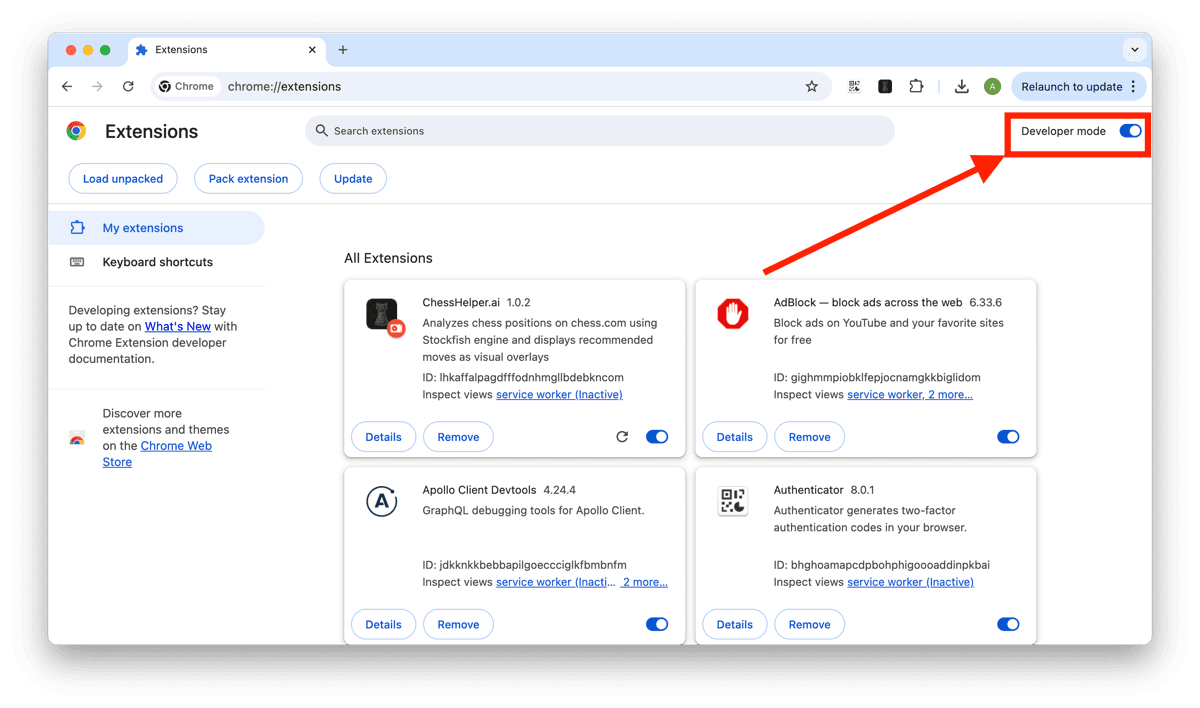
Find the "Developer mode" toggle in the top-right corner of the extensions page and turn it ON. New buttons will appear: "Load unpacked", "Pack extension", and "Update".
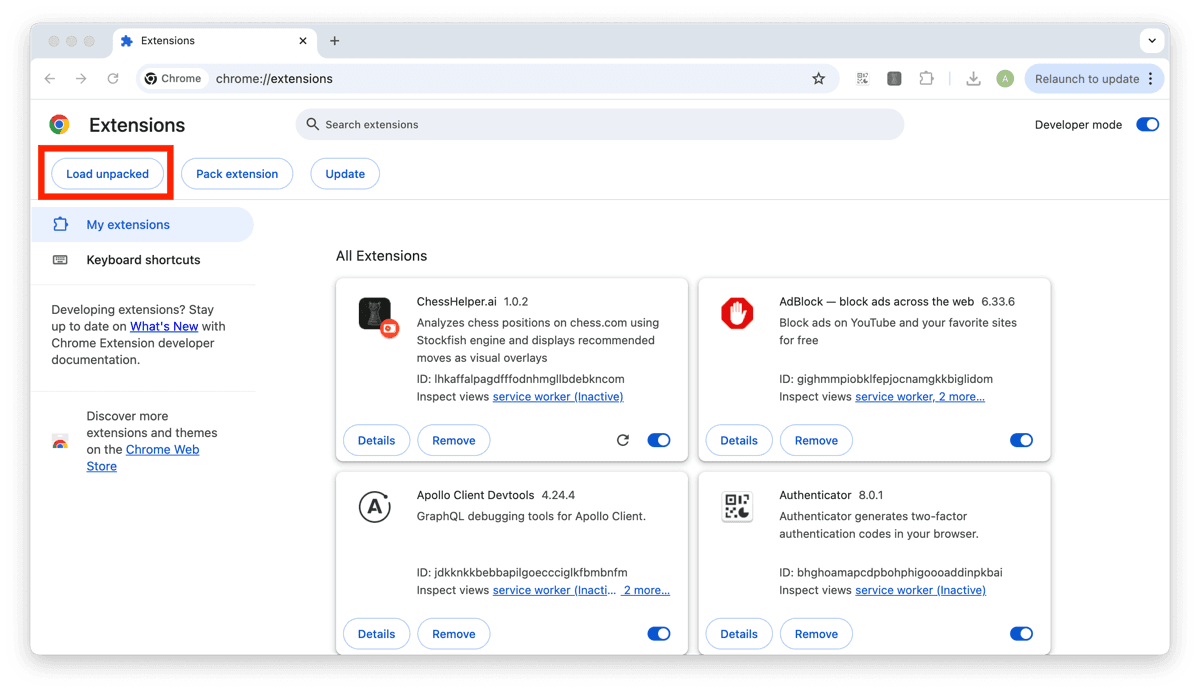
Click the "Load unpacked" button. A file browser will open. Navigate to and select the extracted chess-helper folder, then click "Select Folder" (Windows/Linux) or "Open" (macOS).
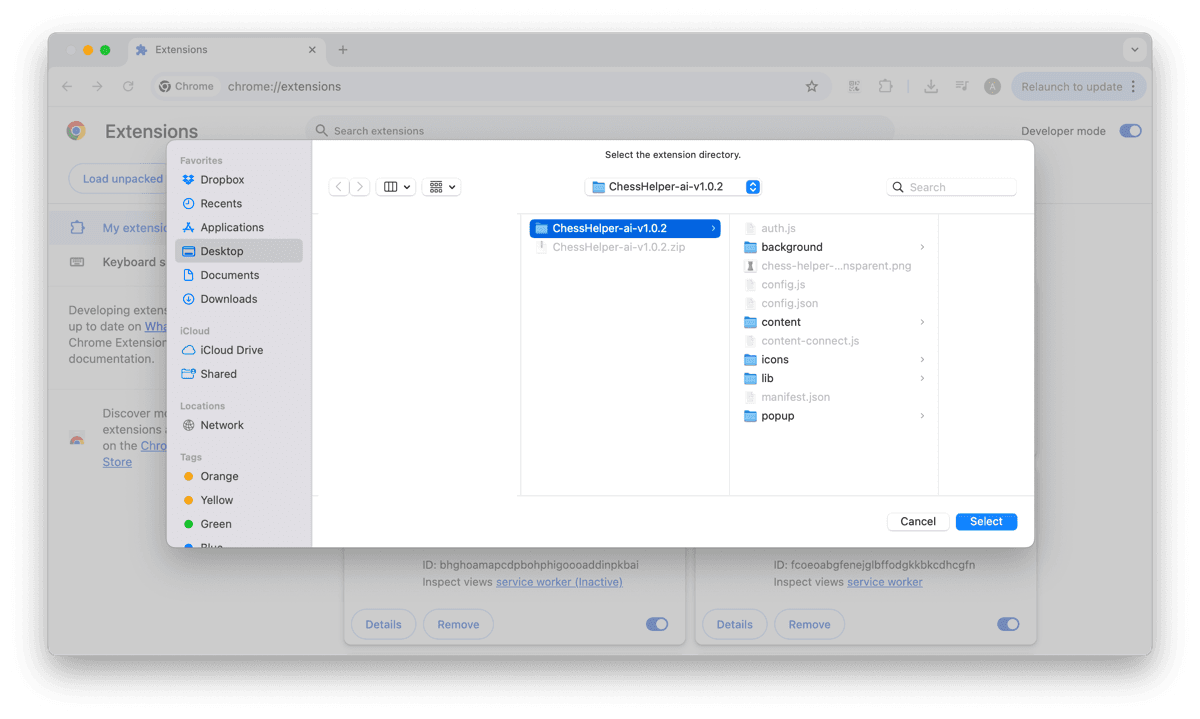
Chess Helper should now appear in your list of installed extensions. Make sure the toggle is switched ON (blue).
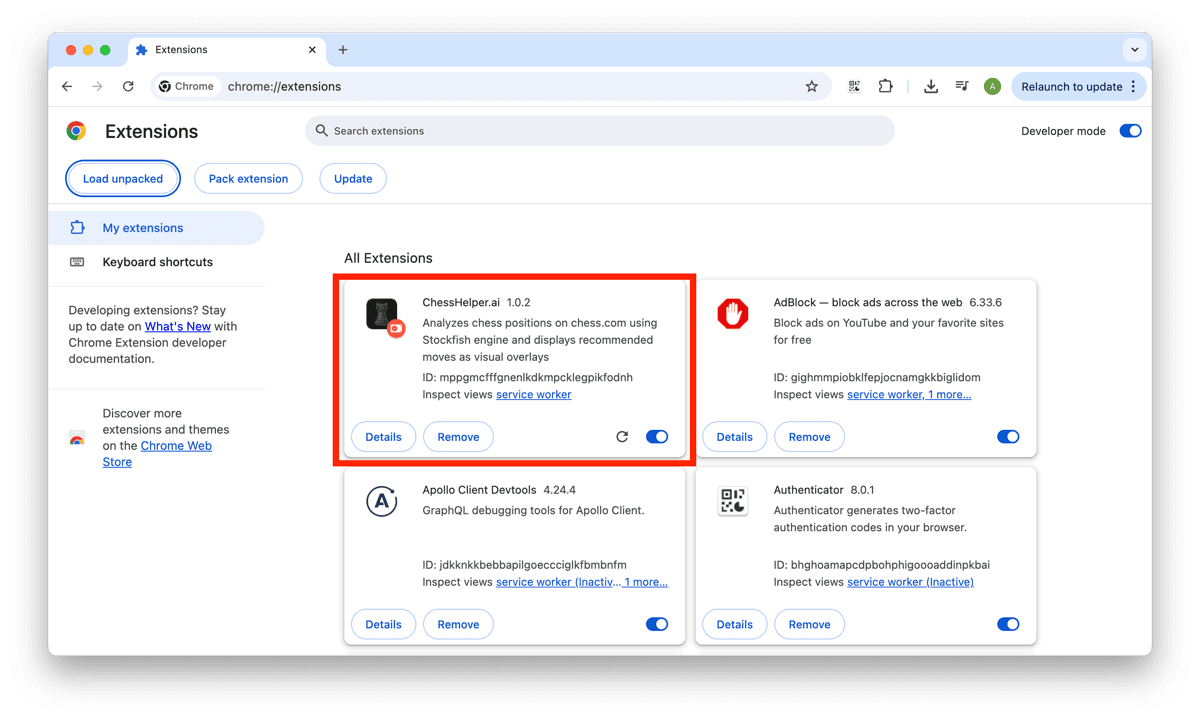
Click the puzzle-piece icon in the Chrome toolbar to open the extensions menu. Find Chess Helper and click the pin icon next to it. This keeps the extension icon always visible in your toolbar.
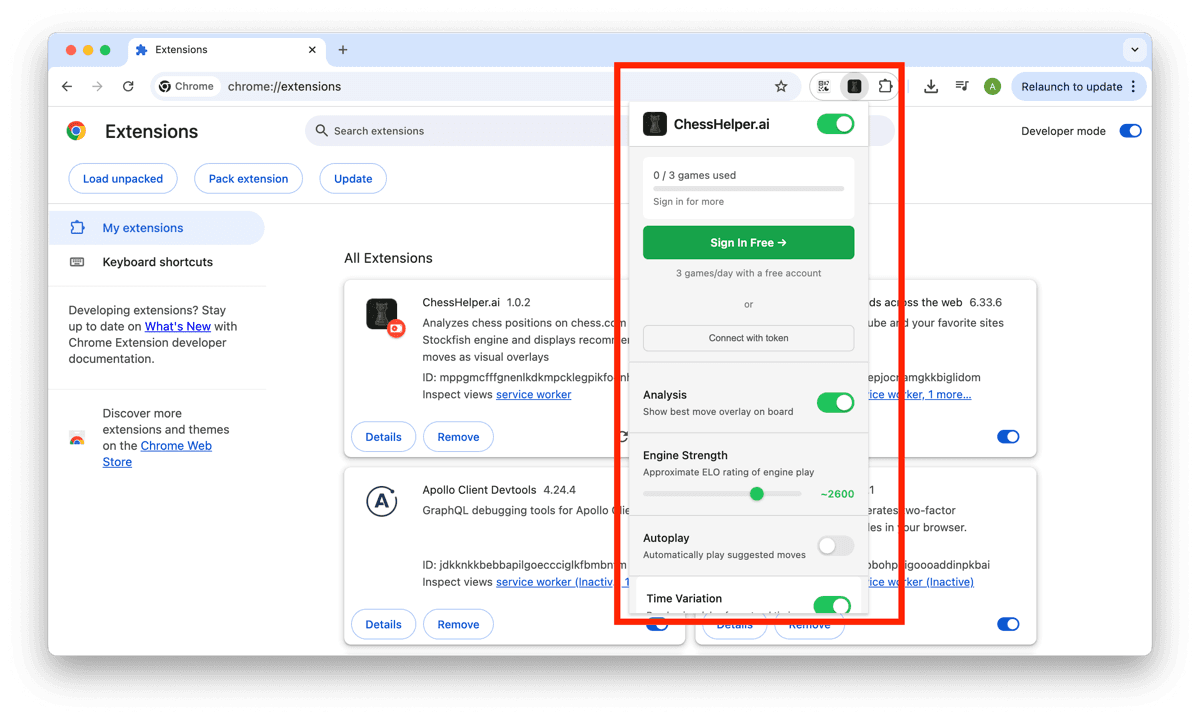
Click the Chess Helper icon in your toolbar, then click "Connect Account". Or visit chesshelper.ai and sign up for a free account. Once connected, open Chess.com or Lichess — the extension activates automatically.
That's it! Open Chess.com or Lichess and the extension activates automatically. Create an account to unlock your free games.
"Disable developer mode extensions" popup when Chrome starts
Chrome shows this for any extension loaded with "Load unpacked". Click Cancel or close the popup to keep Chess Helper enabled. Clicking "Disable" turns the extension off. This is normal for manually installed extensions.
"Manifest file is missing or unreadable"
You likely selected the wrong folder. Look for the folder that contains a manifest.json file at the top level and select that one.
Extension not working on Chess.com or Lichess
Refresh any chess site tabs that were open before you installed the extension. Chess Helper only activates on newly loaded pages.
How to update a sideloaded extension
Download the latest .zip from this page, extract it to the same location (overwriting old files), then go to chrome://extensions and click the refresh icon on the Chess Helper card.
Download the .zip from this page, extract it, open chrome://extensions, turn on Developer mode, click "Load unpacked" and select the extracted folder. The full guide with screenshots is above. It takes about three minutes.
Any Chromium-based browser: Google Chrome, Microsoft Edge, Brave, Opera, and Vivaldi. The installation steps are the same in each. Only the address of the extensions page differs, for example edge://extensions in Edge.
Chess Helper is currently distributed directly from chesshelper.ai instead of the Chrome Web Store. The download on this page is the same extension build. Install it once and update it from this page when a new version is released.
Yes, as long as you download the extension files directly from chesshelper.ai. Sideloading is a standard Chrome feature used by developers. Chrome may show a warning that the extension is not from the Web Store — this is expected for manually installed extensions.
Go to chrome://extensions, find Chess Helper in the list, and click the "Remove" button. Confirm the removal when prompted. Your chesshelper.ai account and subscription remain active — only the browser extension is removed.
No. Manually installed extensions do not auto-update. New versions are announced on our blog. To update, download the new .zip from this page, extract it over the existing folder, and click the refresh icon on the Chess Helper card at chrome://extensions.